User guide

How to use HiveMind

From your first hive to inspections in the field, from the health score to the web panel — step by step. The screenshots come from the app itself, so the button names match what you see on your phone.

1 Getting started

When you open the app you see the sign-in screen. You have three options:

  1. Create an account with Register (name, email, password) — or in one tap with Sign in with Google. On iPhone there is also Sign in with Apple.
  2. If you already have an account, enter your email and password and tap Login. Forgot Password emails you a reset link.
  3. To try the app first, tap Continue without membership.

Guest mode is for trying the app: you can add 1 hive, 1 queen colony and 1 income/expense entry, AI analysis is off and records stay on that phone only. For real use, create an account: your records are backed up to the cloud and also appear in the web panel on your computer.

The app starts in Turkish. Switch to English or German in Settings.
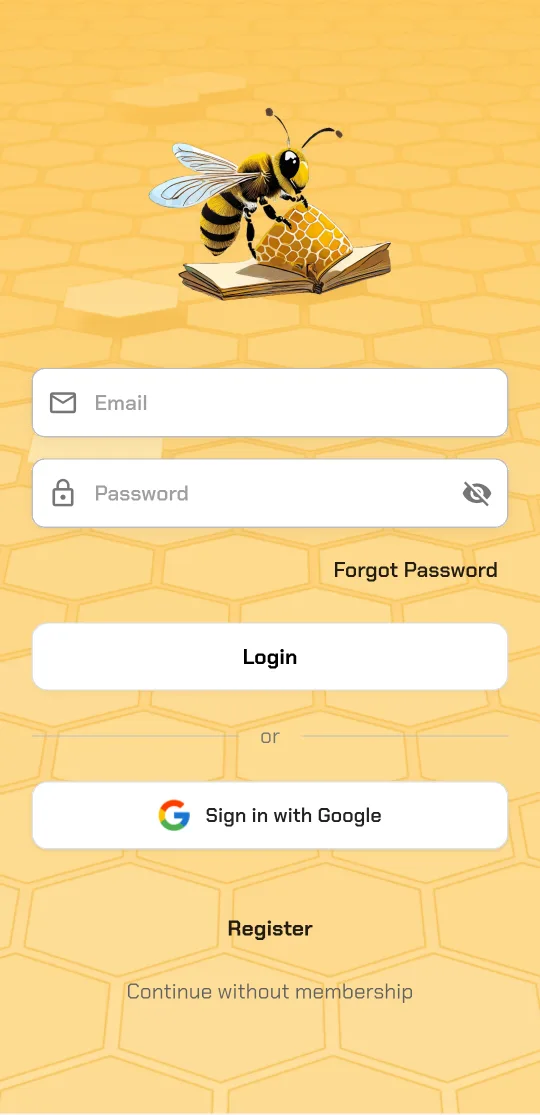
Sign-in screen: email, password, Login, Sign in with Google, Register and Continue without membership

2 Home page

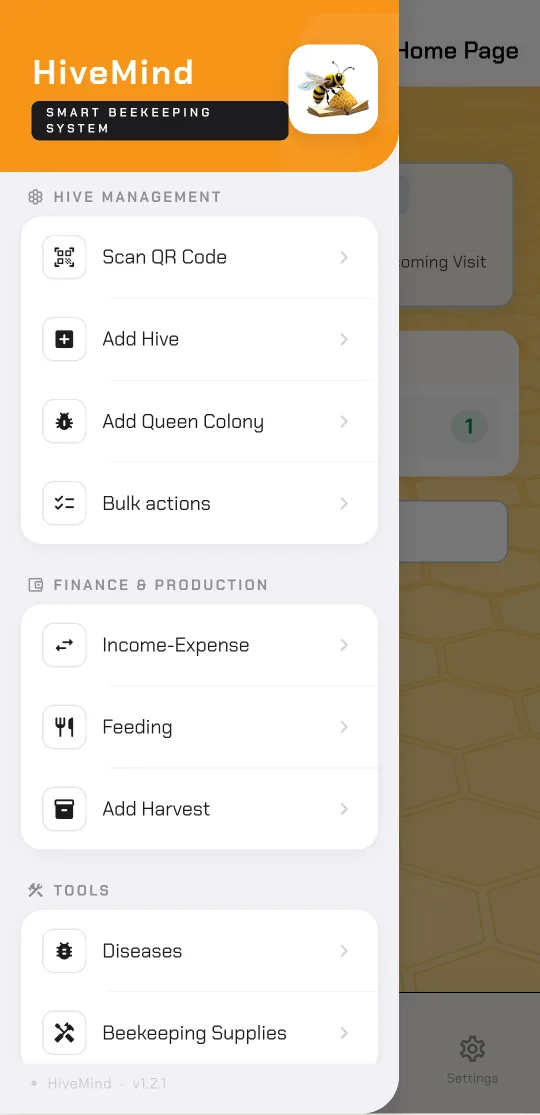
The four tabs at the bottom: Home Page, Library, Queen Bee, Settings. The ☰ icon at the top left opens the menu.

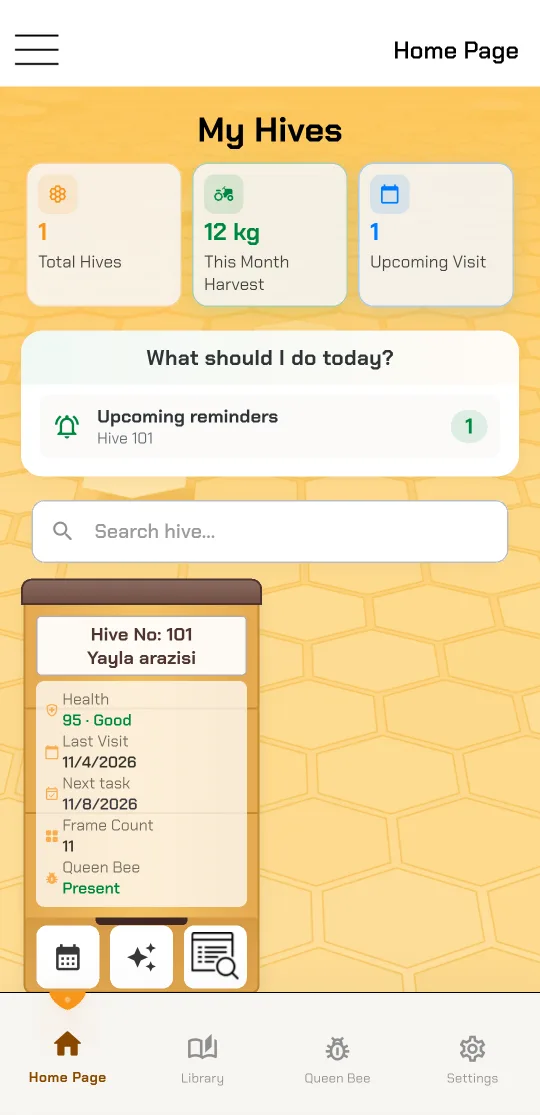
  • The boxes at the top: total hives, this month's harvest and upcoming visits.
  • What should I do today? The app reads your records and lists the day's work: hives whose queen is at risk, that need disease follow-up, that have a reminder coming up, or that have not been inspected for more than 14 days. Tap a row and the list below shows only those hives.
  • Search hive filters by hive number or location.
  • Hive card: health score, last visit, next task, frame count and queen status. Tap the card to open the hive; long-press it to delete the hive.

The three buttons under each card are the ones you will use most:

  1. 📅 Add Hive Maintenance — records an inspection in the field (section 4).
  2. ✦ Hive Analysis — the AI assessment (section 7).
  3. 📋 Actions — feeding, treatment, harvest, queen, photo, voice and video (section 5).
Home page: My Hives, total hives, this month's harvest, What should I do today and the card of hive 101

3 Adding a hive

  1. Open the ☰ menu at the top left and tap Add Hive. (With no hives yet, the Add Hive button on the home page does the same.)
  2. Enter the Hive No. If you leave it empty, the app fills in the first free number in the next step.
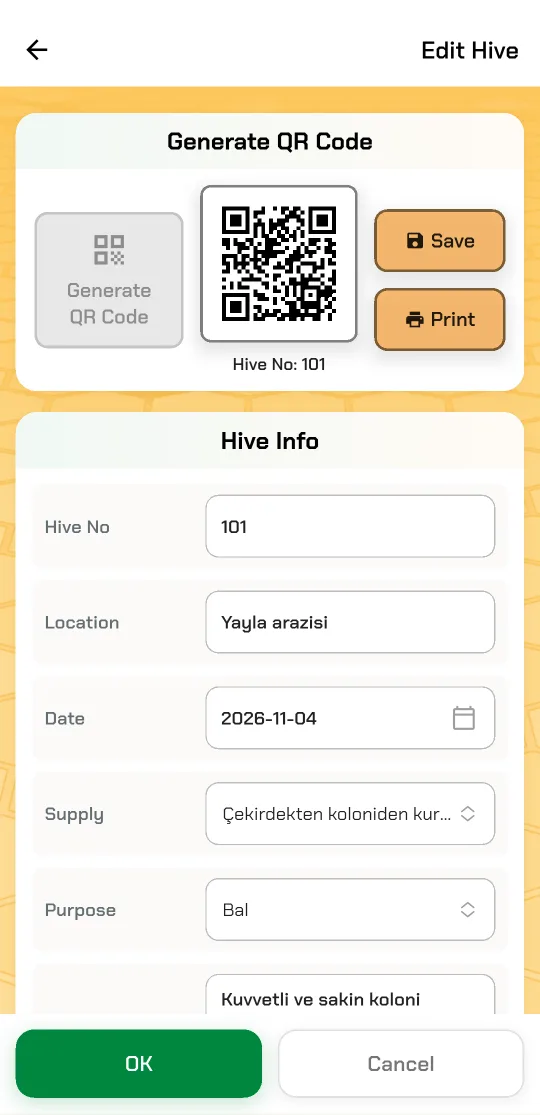
  3. Tap Generate QR Code. A hive cannot be saved without one: the code is the hive's identity and stays the same even if you change the number later. Save stores the image in your gallery, Print sends a label to the printer.
  4. Fill in the Location (e.g. "Highland", "village apiary"), date, supply, purpose and hive type. The location is used for searching, for bulk actions and on the QR labels.
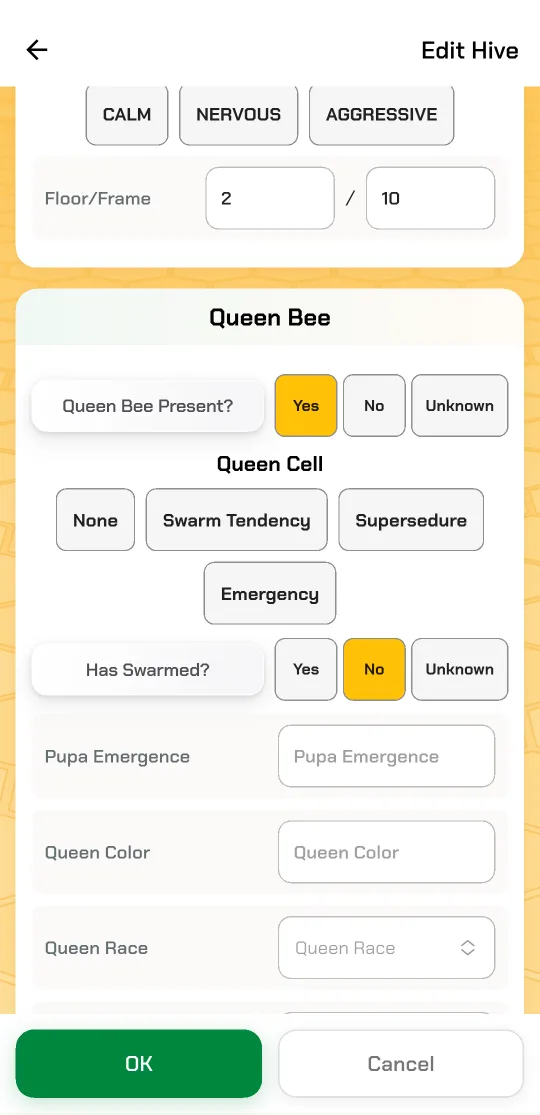
  5. Scroll down: Colony Info (strength, temperament, floors/frames), Queen Bee, brood, frames, stocks and hive conditions. Leave anything you don't know empty or on Unknown.
  6. Save with OK. The hive appears on the home page straight away.

To edit a hive later, tap its card and use the ✎ pencil at the top right (the same form opens, as in the screenshots). If you won't follow a hive for a while — sold, merged, wintering — make it passive with ⏸: its records are kept, but it leaves the list and the daily tasks.

Hive form: QR code with Save and Print, and the Hive Info fields Colony and queen section: CALM, Floor/Frame 2/10 and Queen Bee Present set to Yes

4 Hive inspection

Record an inspection every time you open a hive. The health score, the daily task list and the AI analysis are all built from these records.

  1. Tap 📅 on the hive card.
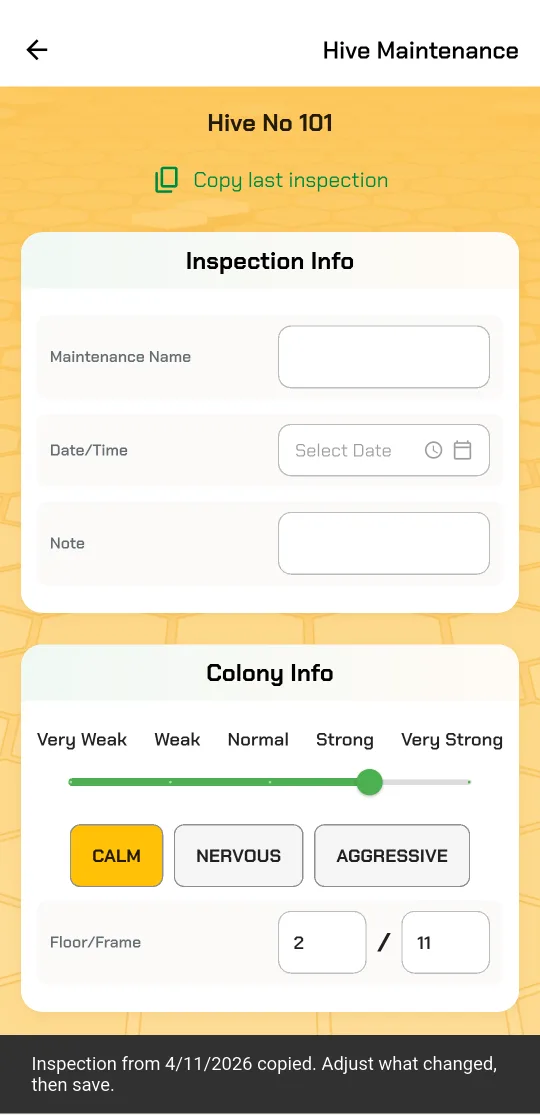
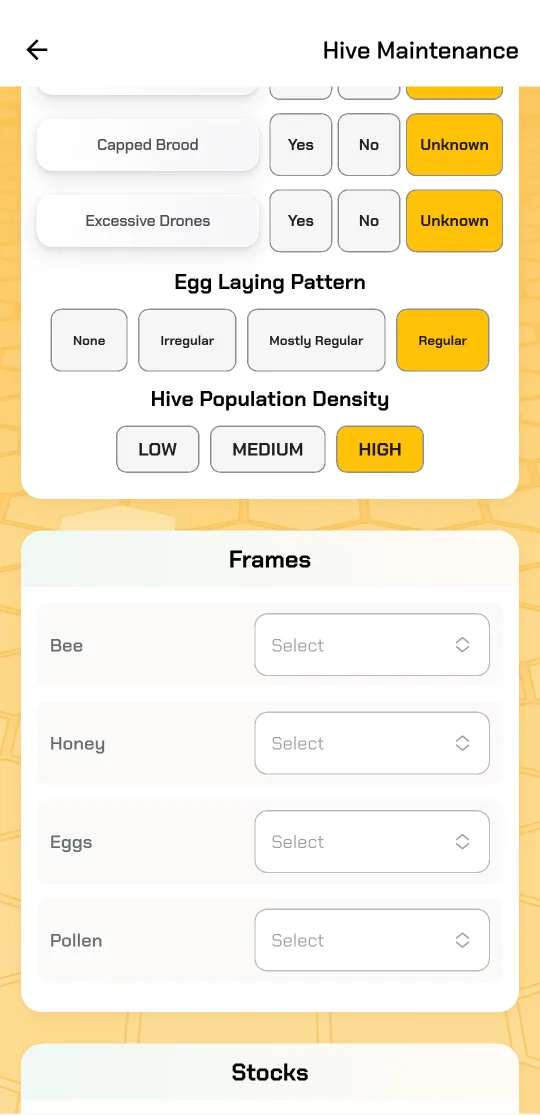
  2. If you have inspected the hive before, tap Copy last inspection: strength, frames, stocks and similar fields come from the last one. Same-day observations — queen seen, eggs, brood, problems — stay Unknown so you record them again.
  3. Enter a Maintenance Name and the Date/Time.
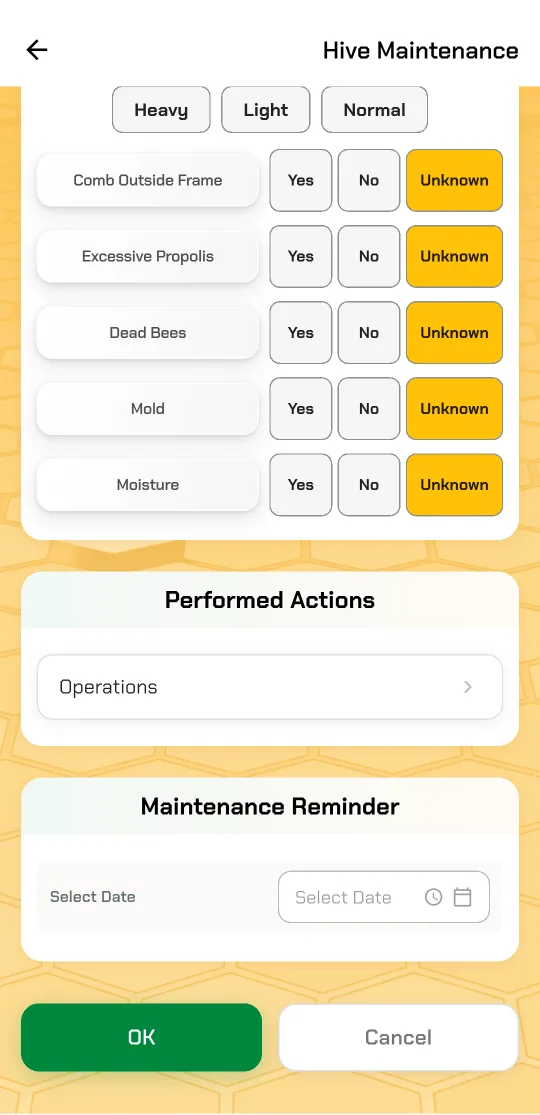
  4. Mark what you see with Yes / No / Unknown. Don't guess what you didn't check; "Unknown" never lowers the score.
  5. Under Detected Issues, pick diseases, pests, predators and treatments from the lists.
  6. At the bottom, set a Maintenance Reminder for the next check. Your phone notifies you on that day and the card shows it as "Next task".
  7. Save with OK.

Wearing gloves in the field? Turn on Settings → Field Mode for larger text and buttons.

Hive Maintenance screen after Copy last inspection: Inspection Info and Colony Info Brood section with egg laying pattern and hive population density, and the Frames section Hive conditions, Performed Actions and Maintenance Reminder

5 Feeding, treatment, harvest, photo and voice

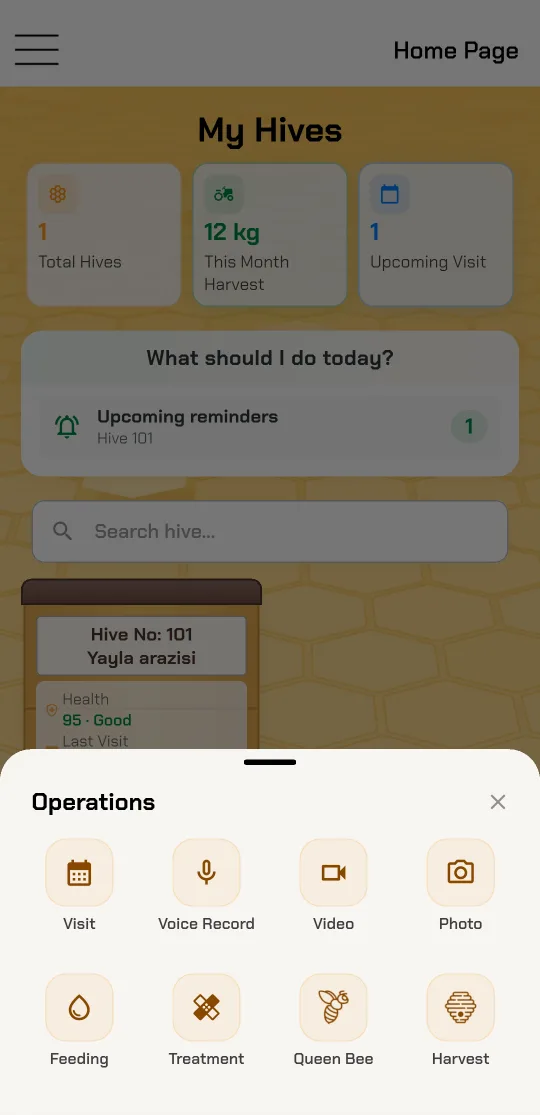
The 📋 Actions button on a hive card opens a menu for that hive:

  • Feeding — feed name, date, sugar or protein group, ratio (1:1, 2:1…) and amount (kg / litres).
  • Treatment — disease (Varroa, Nosema, foulbrood…), product (Apivar, oxalic acid…) and dosage. Every treatment is tracked as a case on the Diseases page.
  • Harvest — product (honey, pollen, propolis, beeswax, royal jelly…), variety and amount. "This Month Harvest" on the home page is calculated from these.
  • Queen Bee — adds a queen colony raised from this hive.
  • Photo, Voice Record, Video — attached to the hive as notes. Voice notes are ideal with gloves on.

Feeding and harvest can also be opened from the menu; you then pick the hive first. To record the same work for many hives at once, use Bulk actions.

A hive's full history — inspections, feedings, treatments, harvests — is listed at the bottom of the page that opens when you tap its card. Delete a wrong entry there with the bin icon.

Operations menu: Visit, Voice Record, Video, Photo, Feeding, Treatment, Queen Bee, Harvest

6 Health score

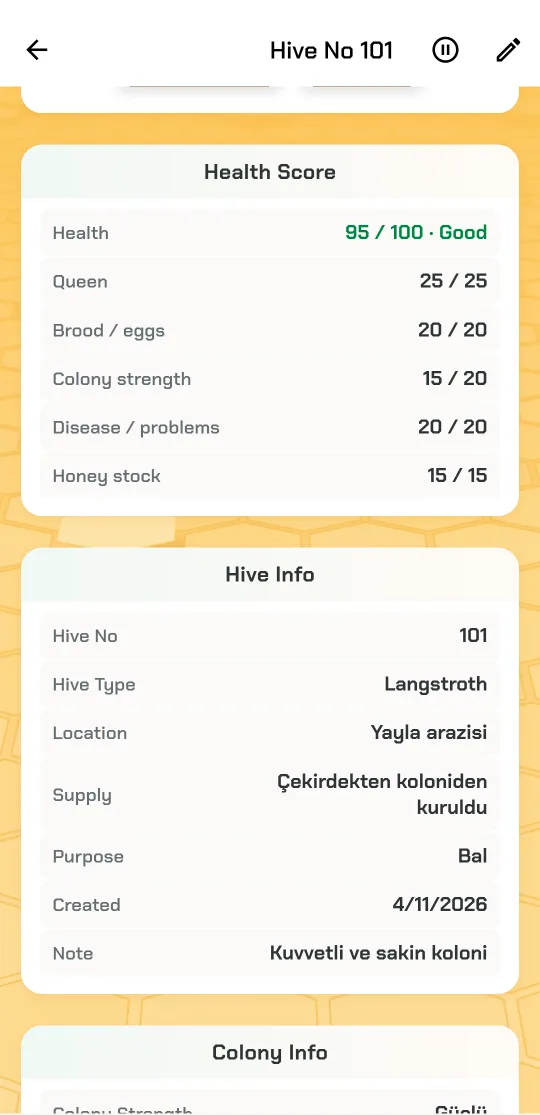
Every hive gets a health score out of 100. It is calculated from the last inspection (or from the hive record when the inspection did not cover an item):

Queen25full points when seen
Brood / eggs20full points when there are eggs or brood
Colony strength20from Very Weak to Very Strong
Disease / problems20dead bees, mould, moisture or an active critical disease lower it
Honey stock15low, medium, high
  • 80 and above: Good · 50–79: Caution · below 50: Critical
  • An item you did not record never lowers the score; only what you know is counted.
  • If you see "Not enough data", record at least three of the five items. The hive page lists which ones are missing.

Tap a hive card for the details: the Health Score section shows each item separately.

Health Score on the hive page: 95 / 100 Good; queen 25/25, brood 20/20, colony strength 15/20, disease 20/20, honey stock 15/15

7 AI analysis

  1. Tap ✦ on the hive card.
  2. The app interprets the last inspection and treatment: the hive's condition, detected problems, what to do next and what to expect.
  • You need to be signed in with an account and online. Recording data never needs the internet.
  • Monthly analyses depend on your plan: 5 on Free, 100 on Pro and Business (at most 20 a day). See what is left under Settings → Subscription. Details: Subscription terms.
  • If the hive's records have not changed, the same result is shown again for 30 days without using an analysis.
  • Queen colonies and the Diseases page have their own analysis too.

The analysis is for information only; it does not replace a veterinary diagnosis.

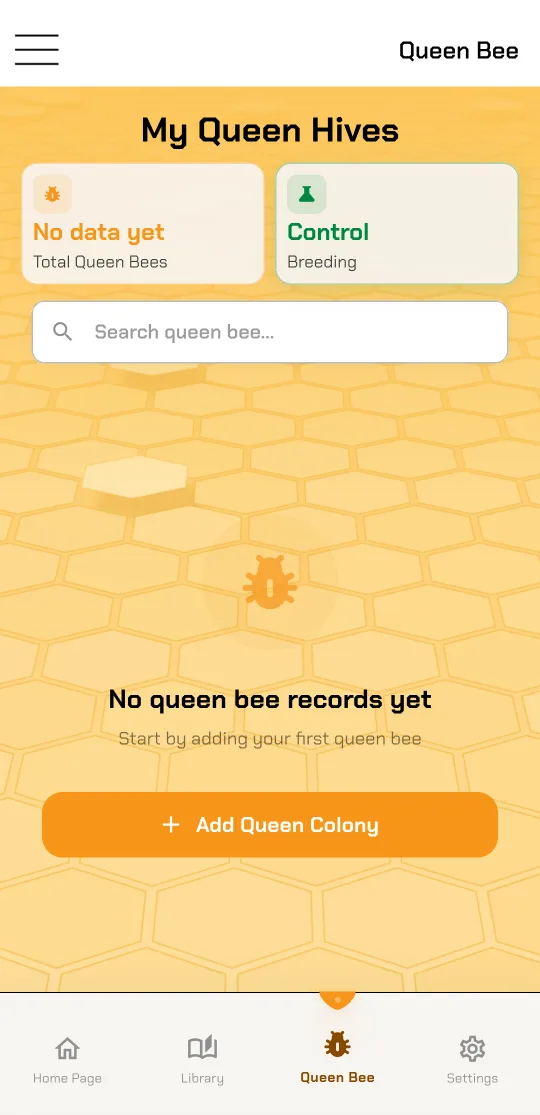
8 Queen colonies

If you rear queens, keep your mating colonies (nucs) separate from your production hives.

  1. Tap Add Queen Colony in the menu, or the button on the Queen Bee tab.
  2. Tap Generate Queen QR, then enter the queen's name, marking colour, race, emergence date and breeding details.
  3. Record checks with Actions → Visit on the colony card: larvae grafted, cells accepted, mating status, varroa. The app works out the success rate, risk and quality scores as you type.

The Queen Bee tab has its own daily list: high-risk colonies, queens about to emerge, planned checks and colonies not checked for more than 10 days.

My Queen Hives tab: No queen bee records yet and the Add Queen Colony button

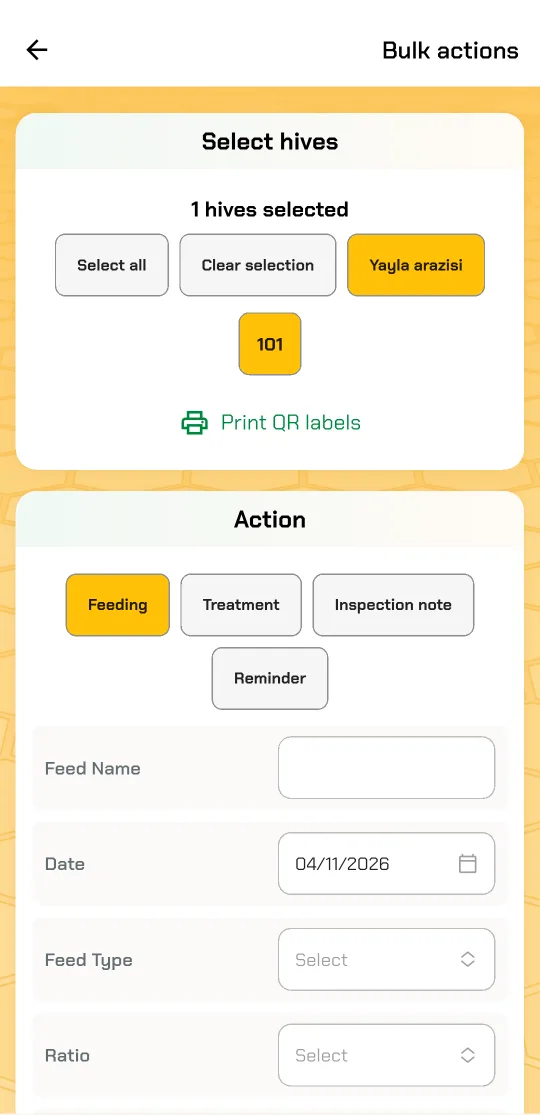
9 Bulk actions, QR labels and QR scanning

Fed or treated dozens of hives on the same day? Don't enter them one by one.

  1. Tap Bulk actions in the menu.
  2. Select hives: Select all, a location name (e.g. "Yayla arazisi") for every hive there, or numbers one by one.
  3. Choose the action: Feeding, Treatment, Inspection note or Reminder, and fill in the details.
  4. Tap Apply to selected hives and confirm. Made a mistake? Undo in the message reverses all of it.

QR labels: Print QR labels on the same page lays out 10 labels per A4 sheet for the selected hives (QR, hive number and location). Print them and stick them on the hives.

QR scanning: in the field, tap Scan QR Code in the menu and point the camera at a label; the hive opens directly.

Bulk actions: selecting hives, Print QR labels and the Feeding, Treatment, Inspection note and Reminder actions

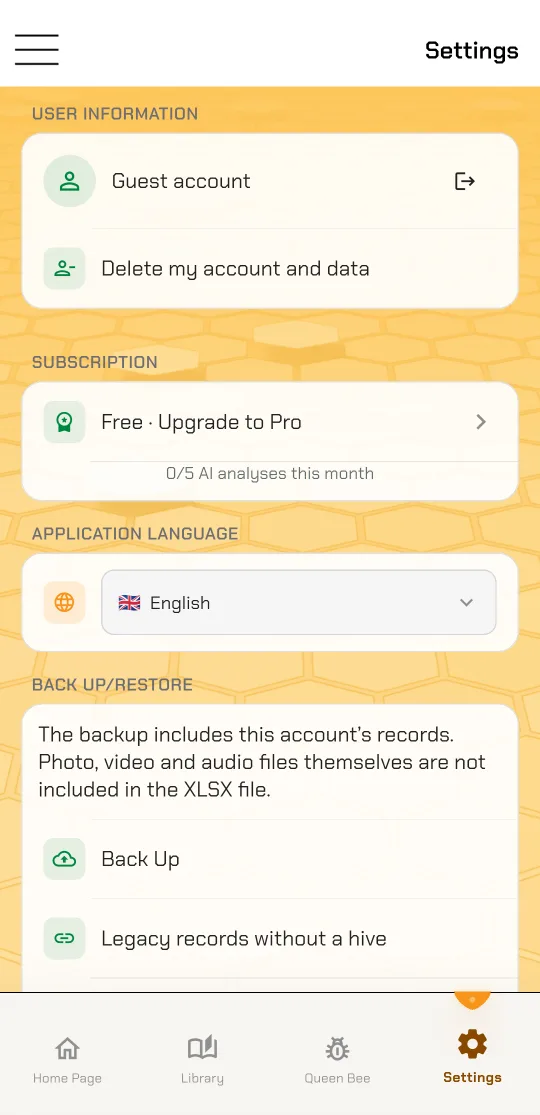
11 Settings, backup and field mode

  • Subscription: your plan and this month's analyses. Tap it to see the plans; they are also on the home page.
  • Application Language: Türkçe, English, Deutsch — applied immediately.
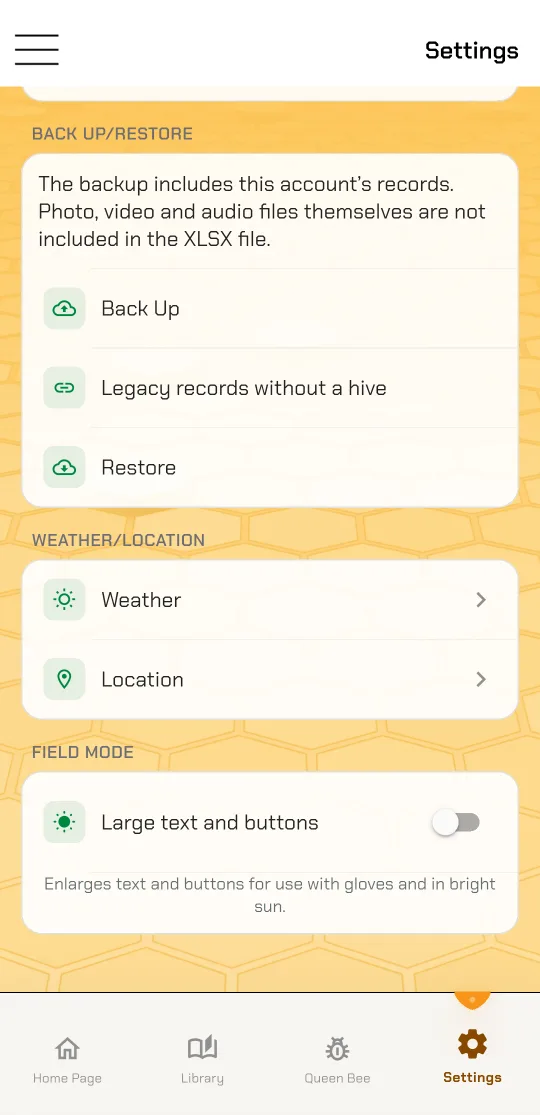
  • Back Up: writes all your records to an Excel (XLSX) file. Photo, video and audio files are not included.
  • Restore: adds the records from a backup file; the records already on the phone are kept.
  • Weather and Location: hourly and 5-day forecast for a city or where you are.
  • Field Mode: the Large text and buttons switch enlarges everything for gloves and bright sun.
  • Delete my account and data: permanently deletes the account and its cloud records. Details: Account and data deletion.

Works without internet. Records are written to the phone first and sent to the cloud when there is a connection; then they appear on your other phone and in the web panel. If something cannot be sent, the home page shows a notice — nothing on the phone is lost.

Settings: User information, Subscription, Application Language and Back up Settings: Back Up, Restore, Weather, Location and the Field Mode switch

12 The web panel on your computer

  1. Open akilliaricilik.com/panel on your computer.
  2. Sign in with the account you use in the app: Sign in with Google or email and password. No account yet? Create one in the app first. (Guest records are not shown in the web panel.)
  3. Your records are the same as on the phone and update live.
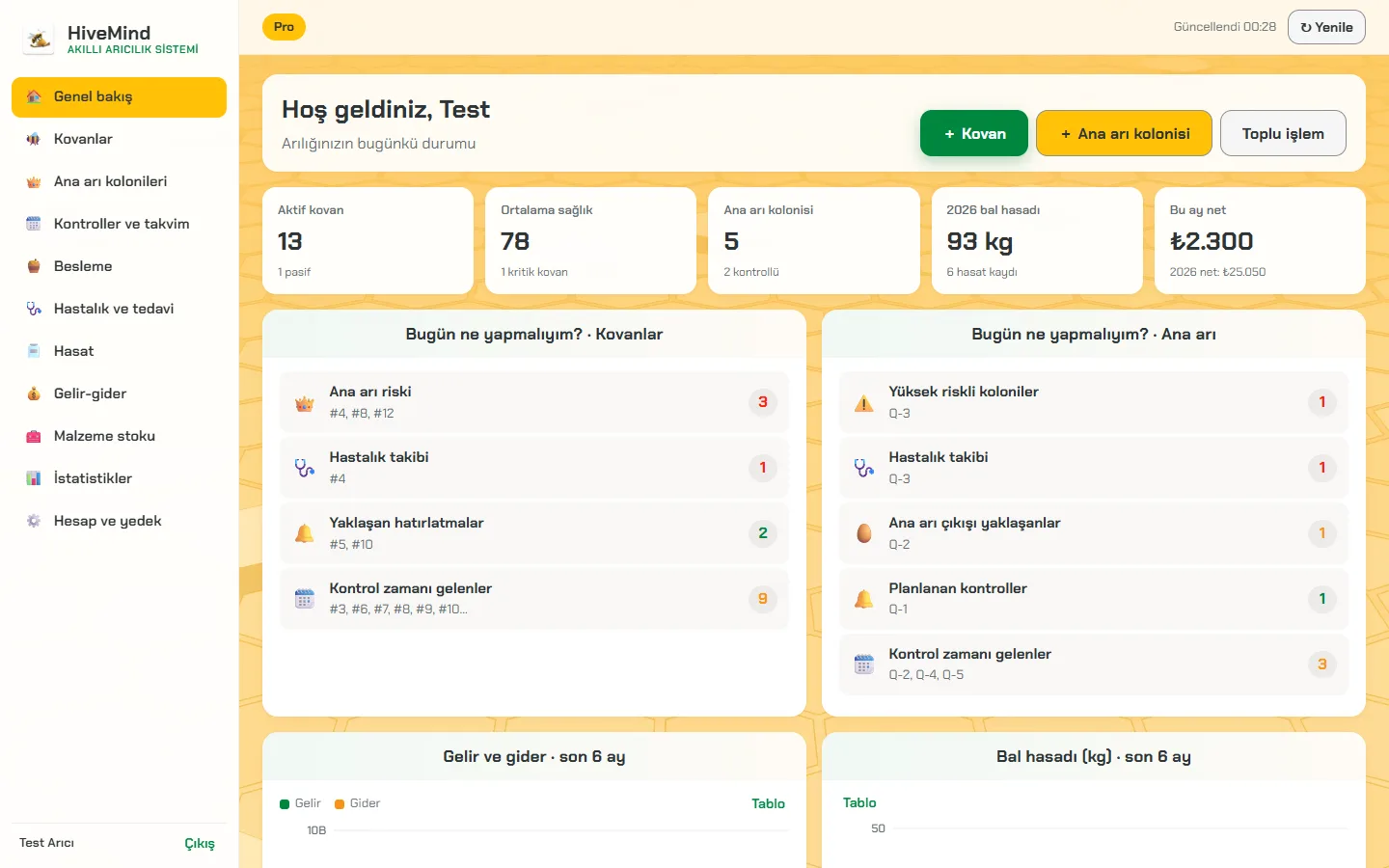
  • Overview: summary boxes, the daily task list, charts.
  • Hives: card or table view, filters, adding and editing hives, entering inspections, feedings, treatments and harvests, printing A4 QR labels.
  • Queen colonies, inspections & calendar, feeding, diseases & treatment, harvest, income & expenses, supplies and statistics.
  • Account & backup: plan details and an Excel backup download.

AI analysis and photo, video and voice records are on the phone only. Buying a plan and deleting the account are also done in the app.

Web panel overview: active hives, average health, harvest and income summaries with the daily task list
Web panel — overview

Stuck somewhere?

Write to destek@akilliaricilik.com. Common questions are answered on the home page.